How to Get Lyrics on CarPlay
On this page
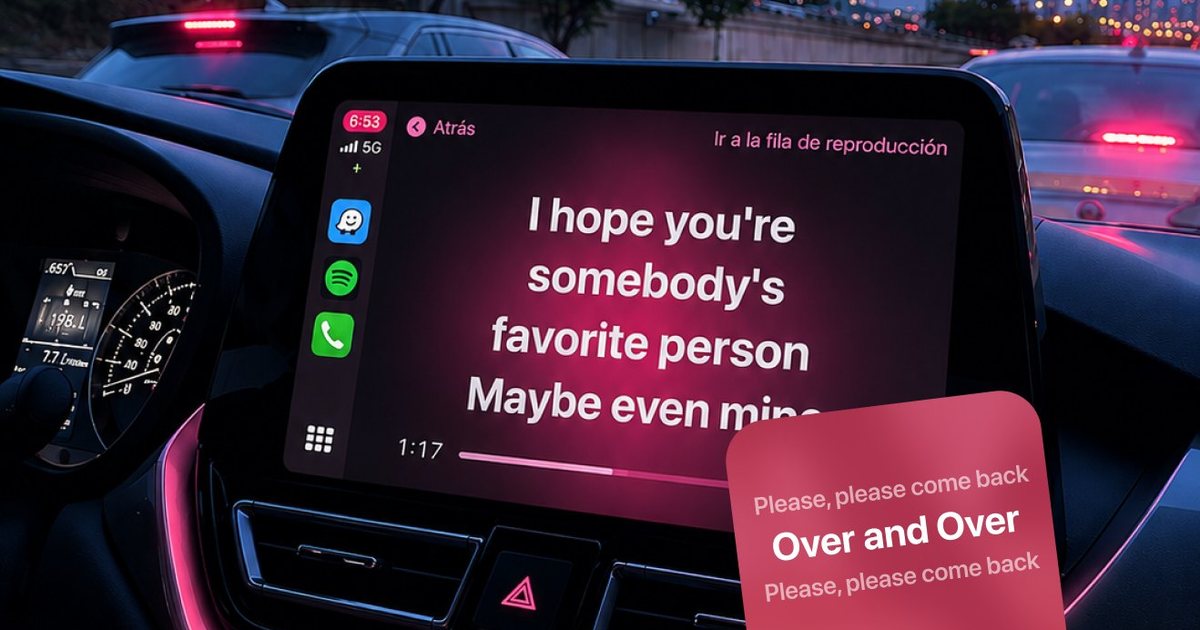
To get lyrics on CarPlay, install a CarPlay-compatible lyrics app such as Lyricast, turn on Live Activities for it in your iPhone Settings, connect your iPhone to CarPlay, then play a song in Apple Music or Spotify. The current lyric line appears on your car screen, synced in real time as the music plays.
CarPlay puts your music, maps, and messages on your car's screen — but Apple still leaves synced lyrics out. Play a song and you get the title, the artist, and album art, yet not a single word. If you like to sing along on a drive, that's a real gap. The steps below include the one setup switch almost everyone misses.
Curious how the tech works? See what CarPlay Live Activities lyrics are before you start.
Already sold on the idea? See the Lyrics on your car screen overview for what Lyricast looks like on the CarPlay screen before you install it.
What you'll need
- An iPhone running iOS 26 or later (CarPlay did not support Live Activities before iOS 26)
- A CarPlay-compatible car or head unit (wired or wireless)
- Apple Music or Spotify — a lyrics app works alongside the player you already use
- A lyrics app that supports CarPlay — this guide uses Lyricast (free to download)
Apple's built-in Music app shows lyrics on your iPhone, but not on the CarPlay screen while you drive. That's why you need an app that's built for the car display itself. This guide uses Lyricast, but it isn't the only option — Musixmatch's CarPlay lyrics update does the same job at a higher yearly price.
| App | Lyrics on iPhone | Lyrics on CarPlay screen |
|---|---|---|
| Apple Music (built-in) | Yes | No |
| Spotify (built-in) | Yes | No |
| Lyricast (lyrics app) | Yes | Yes |
Lyricast
Want lyrics on your own CarPlay screen?
Lyricast sets it up in a minute.

Dynamic Lyrics: Car Widget
Free · iOS 17+


Step 1: Install a CarPlay lyrics app
Open the App Store on your iPhone and download Lyricast. It's free to install, works with both Apple Music and Spotify, and is built specifically to put lyrics on your CarPlay screen — something neither Apple Music nor Spotify does on its own. Open the app once after installing so iOS registers it.
Step 2: Turn on Live Activities (the step people miss)
This is the part that trips most people up. Lyrics reach your CarPlay screen through a feature called Live Activities — the same technology that powers the Lock Screen and Dynamic Island. If it's switched off, no lyrics will appear, no matter what else you do.
To check it's on:
- Open Settings on your iPhone.
- Scroll down and tap Lyricast in your list of apps.
- Make sure the Live Activities toggle is turned on.
While you're there, open Settings → Face ID & Passcode and confirm Live Activities is allowed when your phone is locked. The toggle is always labelled "Live Activities."
Step 3: Connect your iPhone to CarPlay
Connect your iPhone the way you normally do — plug into the USB port for wired CarPlay, or connect wirelessly if your head unit supports it. When CarPlay loads on your car's screen, you'll see the Lyricast icon alongside your other CarPlay apps.
Step 4: Play a song and open Lyricast
Start any track in Apple Music or Spotify, then tap Lyricast on your CarPlay screen. The app detects what's playing and shows the current line of the song, highlighted word by word as the music moves. You don't need to mount your phone or glance down — everything stays on the car display, hands-free.
Step 5: Adjust the text so it's easy to read at a glance
In the app's settings you can change the lyric text size and colour so it's readable in a quick glance without taking your eyes off the road. Set this up once before your next drive. You can also enable automatic launch so lyrics start with your music, and pre-download lyrics over Wi-Fi so they still work in low-signal areas.
Ready to see lyrics on your own screen?
Dynamic Lyrics: Car Widget · Free · iOS 17+
Does it work with both Apple Music and Spotify?
Yes. Lyricast reads whatever is currently playing, so it works with Apple Music, Spotify, and other major services — you keep your usual player and the app supplies the synced lyrics on top. This matters on CarPlay specifically: Apple Music shows lyrics on your iPhone but not on the car screen, and Spotify's lyrics don't appear on CarPlay at all. A dedicated lyrics app fills both gaps.
Why doesn't CarPlay show lyrics on its own?
CarPlay is deliberately minimal. Apple designs the Now Playing screen around glanceable, low-distraction controls — play, pause, skip, album art — and leaves scrolling lyrics out to keep drivers' eyes on the road. Neither Apple Music nor Spotify surfaces their lyrics through the CarPlay interface. For now, a third-party app built for the car screen is the only way to see real-time lyrics while you drive.
CarPlay lyrics not showing? Quick fixes
Run through these first — and if lyrics still will not appear, work through the full troubleshooting guide.
- Live Activities is off. Re-check Settings → Lyricast → Live Activities. This fixes it most of the time.
- Nothing is playing. Lyrics only appear when a track is actively playing in Apple Music or Spotify.
- The app hasn't been opened since install. Open Lyricast once on your iPhone, then reconnect to CarPlay.
- Weak signal. Lyrics load over the internet — pre-download them on Wi-Fi before you set off.
- Old iOS. CarPlay did not support Live Activities until iOS 26 — on iOS 17 through 25, lyrics cannot reach the CarPlay screen at all. Update in Settings → General → Software Update.
Skip the guesswork — try Lyricast free.
Dynamic Lyrics: Car Widget · Free · iOS 17+
Frequently Asked Questions
Can you get lyrics on CarPlay for free?
Yes. Lyricast is free to download and set up, so you can see lyrics on your CarPlay screen at no cost. An optional subscription unlocks unlimited lyric access, but installing the app and getting lyrics onto CarPlay doesn't cost anything up front.
Do CarPlay lyrics work with Apple Music and Spotify?
Yes. The lyrics sync to whatever you're playing, so both Apple Music and Spotify are supported. You keep your existing music app, and the lyrics app displays the synced words on your CarPlay screen.
Why do I need to enable Live Activities for CarPlay lyrics?
Live Activities is the iOS feature that lets an app show real-time information — like a moving lyric line — outside its own screen, including on CarPlay, the Lock Screen, and the Dynamic Island. If it's turned off, the lyrics have no way to reach your car display.
Does this work on iOS 26?
No — the opposite. CarPlay lyrics need iOS 26. Live Activities launched for iPhone back in iOS 16.1, but Apple did not extend them to CarPlay until iOS 26, so the lyric panel has no way to reach your car screen on iOS 17 through 25, even with Live Activities switched on.
That's everything you need to sing along on your next drive. Download Lyricast free, turn on Live Activities, and your CarPlay screen will show every word in time with the music.